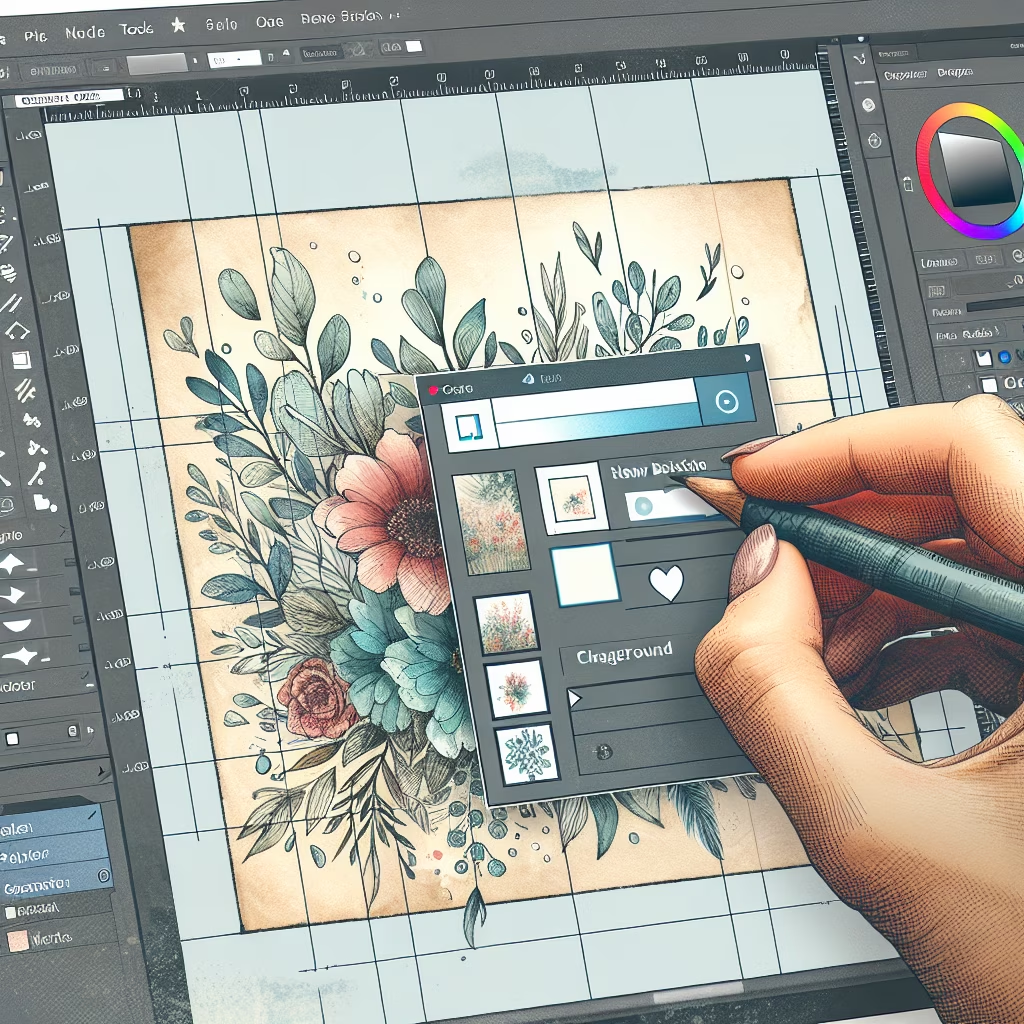
This guide provides step-by-step instructions on how to change the background of an image using Adobe Photoshop. The instructions are based on using the 'Replace Background' feature in Photoshop Elements 2023, but the general principles can be applied to other versions of Photoshop as well.
File > Open and selecting the image file.Quick Selection Tool or press W on your keyboard.Select Subject in the top menu. Photoshop will automatically try to detect and select the main subject in your photo.Lasso Tool or Quick Selection Tool to refine the edges of your selection. You may need to add or subtract areas to get a precise selection.Refine Edge or Select and Mask options to further improve the selection.Guided workspace in Photoshop Elements and choose Special Edits > Replace Background.Import a photo to choose a new background image from your files.Move Tool (V) and Transform options (Ctrl+T or Cmd+T) to resize and reposition the background.File > Save As to save your edited image. Choose the desired file format and location.That's it! You've successfully changed the background of your image using Adobe Photoshop.
You can also watch this video tutorial for a visual guide:
Learn how to create engaging educational content for YouTube in 2024 with this comprehensive guide. ...
A comprehensive guide on how to invest in cryptocurrency safely in 2024, covering essential steps, ...
This document provides a comprehensive guide to mastering data visualization techniques using Python in 2024, ...
A comprehensive guide on how to create a budget for a small business, including step-by-step ...
A comprehensive guide on how to train for a marathon in six months, covering goal ...
A comprehensive guide for beginners on how to build a mobile app, covering ideation, development, ...
 HowToDoX