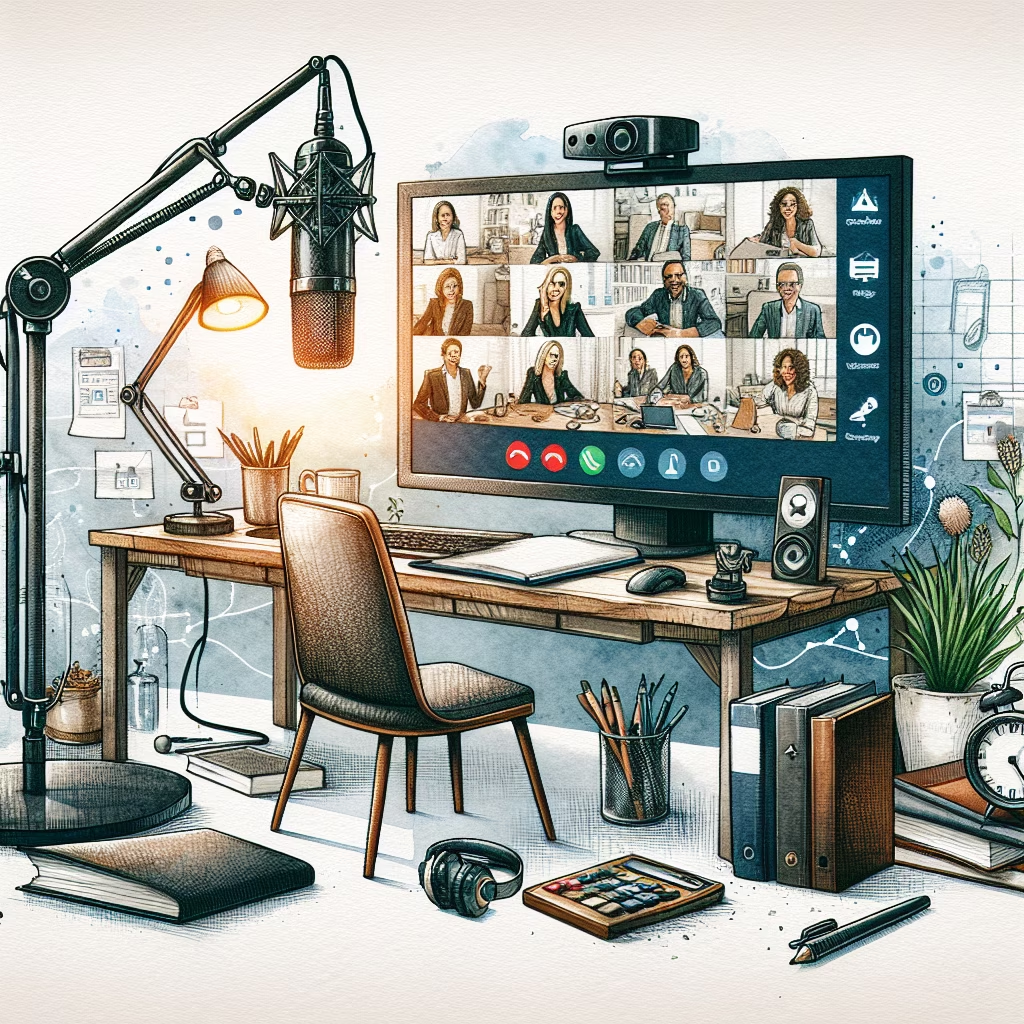
Enhancing video call quality for remote meetings involves several key steps, including updating your software, adjusting video settings, ensuring good lighting, using hardware acceleration, updating graphics drivers, and optimizing your internet connection. These steps will help improve the clarity and stability of your video calls, making remote communication more effective and professional.
Using the latest version of your video conferencing software can fix bugs and improve performance. Check for updates regularly and install them as soon as they are available.
Good lighting is crucial for high-quality video calls. Here are some tips:
Enabling hardware acceleration can offload some video processing tasks to your computer’s GPU, improving performance. This setting is often found in the advanced settings menu of your video conferencing software.
Ensure your graphics card drivers are up to date. Outdated drivers can negatively impact video performance. Visit the manufacturer’s website to download and install the latest drivers.
Sometimes, a simple restart can clear out temporary issues that might be causing lag or performance degradation.
If your computer consistently struggles with video calls, it might be time to upgrade your hardware. A more powerful CPU, additional RAM, or a better GPU can make a significant difference.
You can also watch this video tutorial for a visual guide:
Learn how to set up a home automation system using smart devices in 2024 with ...
Learn how to improve your website's SEO with the latest Google updates. This comprehensive guide ...
A comprehensive guide on how to create a budget for a small business, including step-by-step ...
Learn how to start a profitable online consulting business in 2024 with this comprehensive guide ...
A comprehensive guide on how to improve home energy efficiency for lower bills, covering heating ...
Learn how to start a remote customer support business in 2024 with this comprehensive guide. ...
 HowToDoX